❗UPDATE: The app has been updated since this video. You may check the updated steps below or the alternative method linked below.
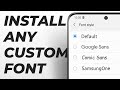
In this guide, I will show you how to install any fonts you like on all Samsung Galaxy devices. It works in all One UI versions 1.0 to 4.1+ (Android 8 to Android 12+)! The font files must be in ".ttf" format. Other formats such as ".otf" can be converted with the tool in the links below.
🔗 Links:
• NEW Alternative Method ➜ https://youtu.be/xHGX-Qm-HvE
• Create a Samsung Account ➜ https://account.samsung.com/
• Instructions by __TrungDK__ ➜ https://forum.xda-developers.com/t/google-product-sans-for-android-10-oneui-2-5-samsung-phone.4203153/
• zFont 3, the font changer ➜ https://play.google.com/store/apps/details?id=com.htetznaing.zfont2
• zFont Tool, the ".ttf" converter ➜ https://play.google.com/store/apps/details?id=com.htetznaing.fonttools
• Google Sans font ➜ https://github.com/sahibjotsaggu/Google-Sans-Fonts
• SamsungOne font ➜ https://github.com/SamsungInternet/OneUI-Web/tree/master/oui-css/fonts
• San Francisco (iOS) font: ➜ https://github.com/AppleDesignResources/SanFranciscoFont
🧐 TL;DR (Last updated: March 2022):
1. Make sure you are signed into your Samsung Account and have downloaded your custom font.
2. Install zFont 3 from the Play Store.
3. Go to the Local tab and tap on the "Aa" button. Alternatively, you may select a font from the app's collection.
4. Select the font file.
5. Tap on APPLY.
6. Tap on "OneUI #All 🎉".
7. When the screen with the steps shows up, tap on "Install SamsungSans" and install it.
8. Tap on "Change the font to Samsung Sans".
9. Select "Samsung Sans" from the list.
10. Back to zFont, tap on "Backup data" and "Let's do it now".
11. Select only "Settings" and tap on "Back up now".
12. Tap on Done and go back to zFont.
13. Tap on "Uninstall SamsungSans" and uninstall it.
14. Tap on "Install [FONT NAME]" and install it.
15. Tap on "Change the font to Default".
16. Select "Default" from the list.
17. Tap on "Restore data" and "Let's do it now".
18. Open the latest backup.
19. Select only "Settings" and tap on "Restore".
20. Tap on "Done" and then "Later".
21. Restart your device.
22. Congratulations! You have installed a custom font on your device!
- This process will add only one font at a time, so if you want to try multiple fonts, you have to repeat these steps.
Also, make sure to always convert your fonts to the ".ttf" format (https://cloudconvert.com/otf-to-ttf)
Thanks for Watching! :)
👍 If you enjoyed the video, please leave a like.
💬 If you have any questions or feedback, please leave a comment!
😎 Become a Pro! ➜ https://www.youtube.com/BredzPro?sub_confirmation=1
❤ Support the channel! ➜ https://ko-fi.com/BredzPro
📷 Check me out on Instagram! ➜ https://www.instagram.com/BredzPro
🐤 Tweet tweet! ➜ https://twitter.com/BredzPro
🎭 TikTok? TikTok! ➜ https://www.tiktok.com/@BredzPro
📘 You still use Facebook? ➜ https://www.facebook.com/BredzPro
🤝 Please respect each other in the comments!
──────────
🥰 Credits:
• __TrungDK__ ➜ https://forum.xda-developers.com/m/__trungdk__.11338923/
• Sound of Aging - Max McFerren (2018)
• Anime Running Effect: https://youtu.be/VzpTWBjH9bk
• Sharp - Jeremy Korpas (2020)
⌛ Chapters:
00:00-00:50 Intro
00:51-01:00 Requirements
01:01-01:23 Installing zFont 3
01:24-04:43 Installing and applying custom font
04:44-05:40 Installing and applying another font
05:41-06:00 Outro
#android #samsung #galaxy #oneui #customfont